Your applications, in the menu bar.
sc-tray sits in the tray and shows what you have running, whose organization is paying for it, and how long the credit lasts. Switching something on or off is two clicks without opening a browser.

What it looks like
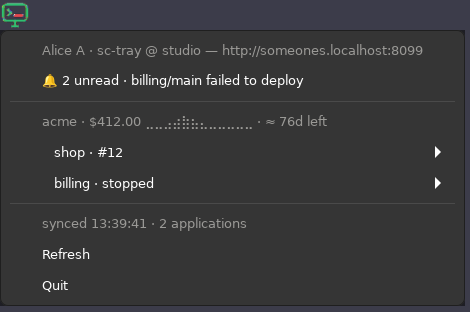
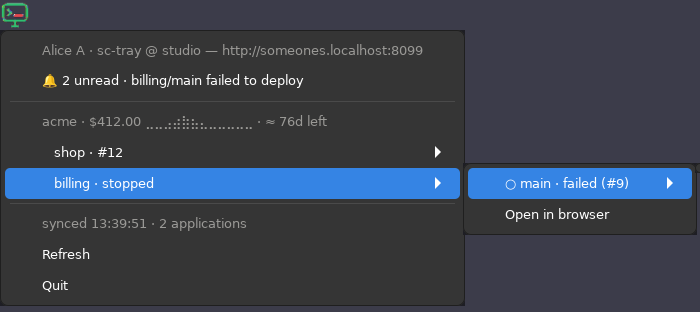
Both shots below are the real binary exporting a real menu, photographed on Linux. Every row you can see was drawn by the tray, not by a mockup.
What it does today
v1 is menu-only and deliberately small. Everything listed here works now; what does not is further down, named.
Your applications, resynced
Every application you can reach and the status of each deployment, refreshed every ten seconds. Grouped under the organization that owns them once you belong to more than one.
Switch things on and off
Activate a built revision, or stop a running one. No new machinery behind it — "on" and "off" are the same two operations the CLI and the control panel already queue.
Only the gesture that would work
A revision that cannot be activated does not offer to be. The menu is built from what the platform would accept, so a click never returns a conflict you have to interpret.
It watches the activation land
Switch something on and the tray follows it to running or failed, then raises one desktop notification — not one per poll.
Money, where you would look for it
The organization heading carries its balance, the day’s spend as a braille sparkline, and how many days the credit lasts at that rate.
A refusal you can act on
If an activation is refused for want of credit, the menu grows a "Top up credit…" row pointing at that organization’s billing page, instead of an error you have to go and decode.
Already signed in
It shares the credential store with sc. Run sc login once and the tray is signed in too; it says which account and which endpoint, so you cannot mistake staging for production.
An icon that follows your theme
The brand mark as a macOS template image, redrawn black-on-light and white-on-dark by the menu bar itself rather than shipped as two files.
Switching off asks twice
A running deployment's row does not stop it on the click that opens it — it holds a Confirm stop entry underneath. Tearing down removes a live stack, and a tray row is far easier to catch with a stray click than a button on a page you deliberately navigated to.
Switching on is a single click, because its failure mode is a deployment rather than an outage. The asymmetry is the whole point: the confirmation is spent where the mistake is expensive.
Where it runs
| Platform | How it draws | Needs |
|---|---|---|
| macOS | A menu-bar extra, with a template icon the system recolours | Builds locally against cgo |
| Linux | A StatusNotifierItem over D-Bus | An SNI host — KDE, the MATE/XFCE trays, or GNOME with the AppIndicator extension |
| Windows | A notification-area icon | Nothing beyond the binary |
There is no photograph of the Windows build on this page because there is no Windows machine here to take one, and a Linux menu wearing Windows colours is an illustration rather than a screenshot. It is supported; it is simply not pictured.
Not in it yet
v1 is the toggle and the glance. These are known gaps, not oversights — worth knowing before you install rather than after.
Signing in from the tray
Device-flow login is not built. Today the tray reads the credential store sc login writes, or an SC_TOKEN in its environment — so you sign in with the CLI once, and the tray inherits it.
The rich windows
The runway chart, the schedule editor and the log viewer all need a real window rather than a menu, and land together in v2.
Press and hold to stop
The intended gesture for switching off, with the animation that makes it legible. It needs a window too, so the confirming second click stands in until then.
Icons that change with state
Animated while something is deploying, badged when a revision has failed, dimmed when signed out. Today the icon is one icon.
Rebuilding the menu as things appear
Rows are retitled, shown and hidden in place, which is all a toggle needs — but an application created while the tray is running asks for a restart on the status line rather than half-drawing itself.
Build and run it
There are no pre-built downloads yet — sc-tray is built from source, from its own repository. It needs Go and, on macOS, the Xcode command line tools for cgo.
go build ./cmd/sc-tray
SC_ENDPOINT=https://app.someones.computer ./sc-tray
The token comes from sc login, so install the CLI and sign in once first. Set SC_TOKEN instead if you would rather hand it one directly.
It is the same platform, closer to hand
The tray is a fourth client on one contract — the same bearer token, the same tenant rules and the same two queued operations as the CLI, the control panel and the agent tools. Nothing it does is a thing only it can do, which is why it is small.